IO Coop VPS’s have a system in place to allow you to remotely reboot/shutdown/console your VPS’s.
Access is controlled via the sshkey provided when signing up for the VPS.
ssh -t vps@g1.iocoop.org====================================================
IO Coop VPS command and control
====================================================
Commands:
list List all available instance.
console Attach to the serial console of an instance.
reboot Reboot an instance.
startup Start an instance.
shutdown Shutdown an instance.
vncconsole Expose a VNC port to connect to an instance's console.How to remotely access your VPS graphical desktop using VNC
VNC is a graphical desktop sharing system. With it you can connect to your VPS to diagnose problems when you’ve lost access to it through other means (ssh, web)
-
Install a VNC client. TightVNC is a good Windows client and RealVNC works on Mac Windows and Linux
-
Determine what port your VPS is bound to.
ssh -t vps@g0.iocoop.org list-
This command will connect to the VPS management system and list out the VPS or VPSs that you have
============================================================================= IO Coop VPS command and control ============================================================================= Commands: list List all available instance. console <instance> Attach to the serial console of an instance. reboot <instance> Reboot an instance. startup <instance> Start an instance. shutdown <instance> Shutdown an instance. vncconsole <instance> Expose a VNC port to connect to an instance's console. user@example.com> list Instance Name State CPUs RAM VNC Port ----------------------------------------------------------------------------- myhost.example.com running 1 2048 localhost:12345 -
In this example our VPS is called myhost.example.com and the “VNC Port” is “localhost:12345” however your VPS name and VNC port will be different.
-
-
Establish a SSH tunnel between your computer and the VPS management system over the VNC port.
ssh -t -L 12345:localhost:12345 vps@g0.iocoop.org vncconsole myhost.example.com- With this command we’re creating a tunnel between port 12345 on our host and port 12345 on the VPS management system. This will allow us to connect our VNC client to the VPS management system
-
Run your VNC client
-
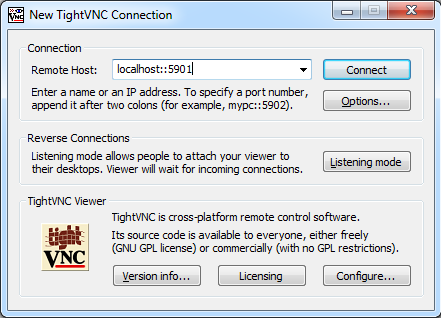
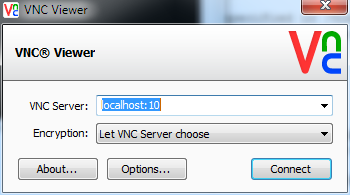
Connect to “localhost:12345” in your VNC client
-
Here is what it would look like in TightVNC. In this image the VNC port is 5901.
-
Here is what it would look like in RealVNC. In this image the VNC port is 10.
-
How to remotely access your VPS console
You can access your VPS host over serial console by running
ssh -t vps@g1.iocoop.org console myhost.example.comOnce you do, you’ll get back this response
INFO: Original command
Console for: 'myhost.example.com'
  Use ^] to disconnect
  (You might need to press enter to wake up the getty on your instance)
-----------------------------------------------------------------------------
At this point, hit the enter key to get a prompt from your host and then login with your user.